
WhatsApp Reminders
Appointment Reminders on WhatsApp
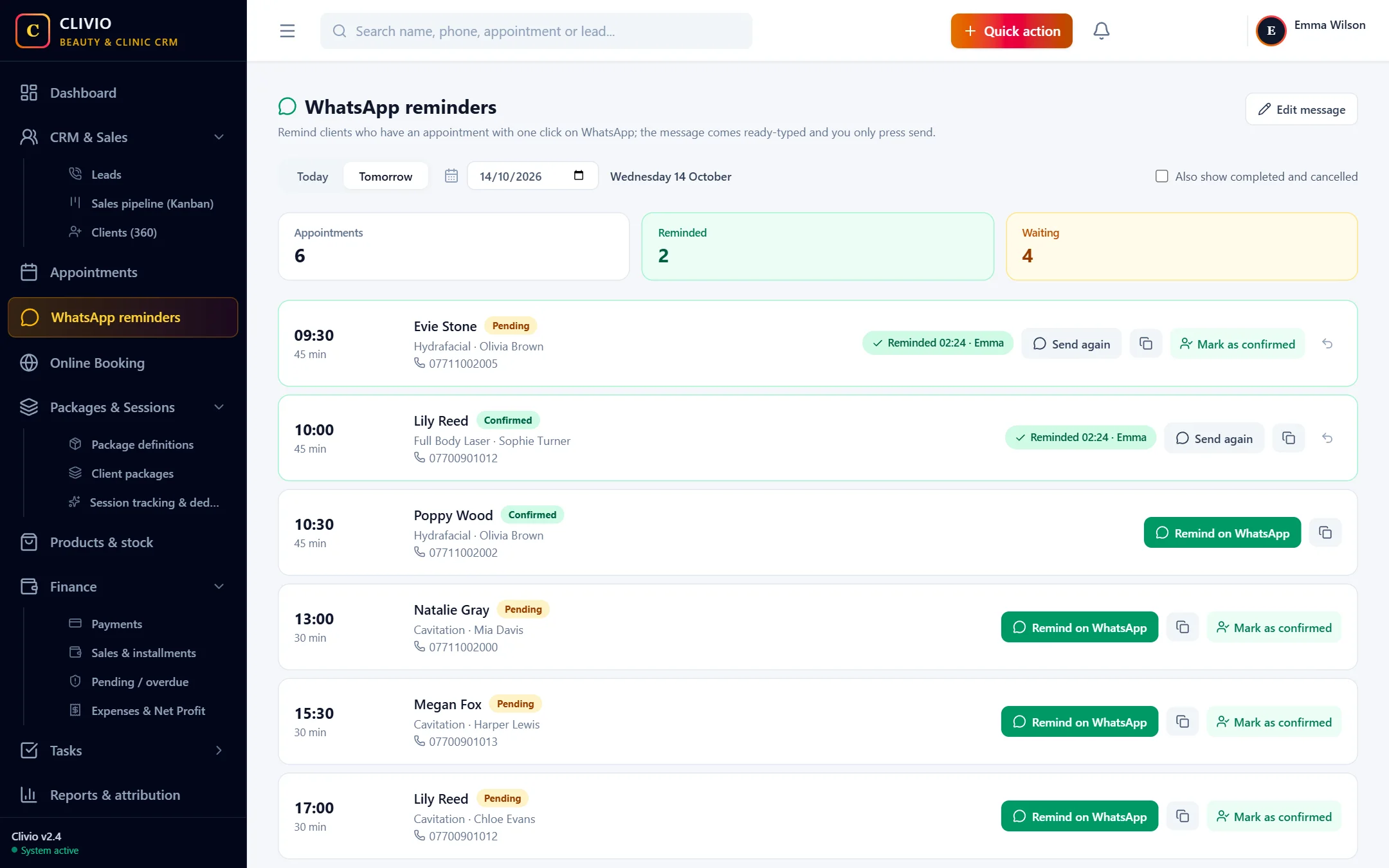
One of the simplest ways to reduce no-shows is to remind clients before the appointment. Clivio shows tomorrow’s appointments in one list, opens WhatsApp with the message already typed for each client in one click, and records who was reminded.
What does it offer?
- Tomorrow’s appointments in one list; you can also open today or any day you choose
- One-click WhatsApp: the client’s name, day, time and service come ready in the message
- A reminded appointment is marked: you see at what time and by whom
- Your own message text, a live preview and "Back to default"
- "Mark as confirmed" turns the appointment into Confirmed in one click when the client agrees
Forgetting the appointment is the easiest cause of a no-show to prevent
A client who does not come means an empty hour and lost revenue for you. One of the simplest ways to prevent it is a short, polite reminder before the appointment. But with dozens of things to do in a day, it is hard to keep track of whom you have already reminded. The WhatsApp reminders page reduces this to a single list.
Tomorrow’s appointments in one list
The "WhatsApp reminders" page in the left menu opens tomorrow’s appointments by default; use the "Today" button or the date picker to look at another day. Each row has the time, client name, service, staff member and phone number. Appointments that were cancelled, completed or closed as no-show are hidden by default; you can show them with the option on the page. The counters at the top show how many appointments there are that day, how many were reminded and how many are waiting.
One click, message ready
When you press "Remind on WhatsApp", WhatsApp opens with the client’s chat and the message already typed: the client’s name, the appointment day and time, the service and your business name are filled in automatically. You only press send. The message goes out from your own WhatsApp account.
- You can edit the message in WhatsApp before sending it.
- You can also copy the message and send it from another app.
- If the client says they will come, "Mark as confirmed" moves the appointment to Confirmed.
- If there is no phone number, or it is invalid, a warning shows on the row; numbers written without +90 are treated as Turkish numbers.
Who reminded whom, on record
The moment you press the button, the row is marked "Reminded"; the time and the name of the person who sent it are shown. That way a colleague does not message the same client twice. If it was marked by mistake you can undo it; every mark and undo is written to the audit log.
Write the message in your own words
With "Edit message" you write your business’s own reminder text (for users who may edit business settings). If you write {ad}, {tarih}, {saat}, {hizmet}, {uzman} and {isletme} in the text, each client’s own details are filled in automatically. The preview shows the result at once; "Back to default" restores the original text.
A deliberate limit
Clivio does not send SMS or WhatsApp messages by itself; you send the reminder. That way the message comes from your own number, the client reads it from the number they know you by, and Clivio charges nothing per message.
Start reminding today to reduce no-shows
Start Your 7-Day Free TrialFrequently Asked Questions
About WhatsApp Reminders
Related features
Who is it for?
Guide articles
Take your business digital today
Try it free for 7 days. No setup fee, no credit card needed.