
Appointment Management
Beauty Salon Appointment Software
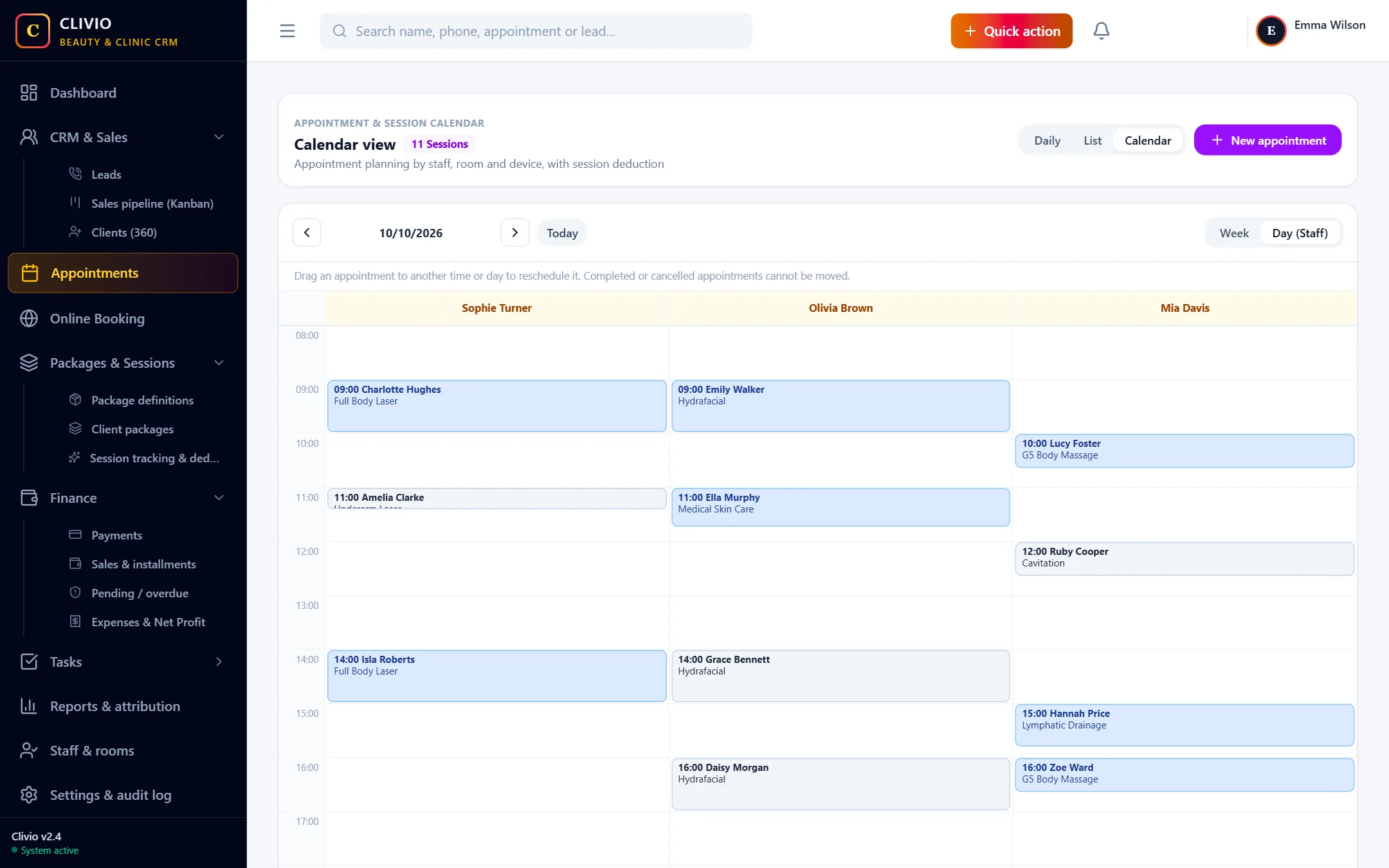
Appointment management that stops staff, rooms and devices from being booked twice at the same time, with day and week calendars. When an appointment is completed, the session is deducted from the package in a single step.
What does it offer?
- Conflict checking by staff, room and device
- Availability based on branch working hours
- Day, list and calendar views; rescheduling by drag and drop
- Appointments linked to package sessions and one-step "Complete & deduct session"
- Online booking request: the client applies without an account, and it lands in the calendar when you approve it
- Pending, Confirmed, Arrived, In progress, Completed, Cancelled and No-show statuses
- WhatsApp reminders: tomorrow’s appointments in one list, one-click WhatsApp with a ready message, a record of who reminded
Book appointments without conflicts
When you create an appointment, the "Check for conflicts" button shows whether the staff member, the room and (if any) the device are free at that time. The system checks once more when you save; an appointment cannot be saved on a time that is taken. This stops requests that come in by phone, WhatsApp and walk-in from piling up on the same time.
Appointments are planned according to the branch working hours. Entering an appointment on a day you are closed or outside working hours is prevented from the start.
See it on the calendar, drag to move
In the daily view each staff member is a separate column; in the weekly view the days sit side by side. When you drag an appointment to another time or day, the system applies the same conflict rules and tells you why if the move is not possible. Completed and cancelled appointments cannot be moved, so past records are never damaged.
The status of every appointment is clear
- Pending: just created, not yet confirmed
- Confirmed: confirmed with the client
- Arrived and In progress: the client is in the salon, the session is under way
- Completed: the session took place
- Cancelled and No-show: lost appointments are counted separately
Every status change is written to the client's timeline with who made it and when. The number of no-show clients appears on the dashboard and in reports; you can also take a look at our guide on how to reduce it.
Online booking: the client applies, you approve
Clivio gives you an online booking link made just for your business; you can add it to your Instagram bio, your Google business profile, your website or your WhatsApp messages. Without a username or password, the client picks the service, date and time and writes their name and phone number. The free times shown are calculated from the working hours of the branch and the specialist, time off and existing appointments.
An incoming request does not hold a slot in the calendar and does not affect your appointment, occupancy or no-show reports. You see the number of pending requests in the left menu, and you approve the request, decline it or suggest an alternative time. At the moment of approval the availability of the specialist, room and device is checked again; if the time was taken in the meantime, the approval fails and nearby free times are suggested to you, so a double booking is never created. If the client is already registered, the request is matched to their existing card by phone number; if not, it appears as an awaiting-approval lead and becomes a client on approval. The client sees the status of their request through a private link made just for them and can accept the alternative time you suggest.
The form shows a privacy notice; marketing consent is separate and optional. Online booking is included in all plans; there is no per-request or extra-user fee. No automatic SMS is sent: the client is answered by email (if they gave one) and the status link, and you can also call them by phone.
Package appointment: deduct the session in one step
When you create an appointment by choosing the client's active package, the appointment is linked to that package. When the appointment is over, the "Complete & deduct session" button closes the appointment and deducts that visit's sessions from the package. If the client did not have a service done that day, its entitlement is not lost; it carries over to the next visit.
You can enter past appointments too
An authorized user can record appointments that took place before you moved to Clivio with a past date and as "Completed". This way the client history is complete from day one.
Bring your appointments together in Clivio today
Start Your 7-Day Free TrialFrequently Asked Questions
About Appointment Management
Related features
Who is it for?
Take your business digital today
Try it free for 7 days. No setup fee, no credit card needed.