
Product Sales & Stock
Product Sales and Stock Tracking Software
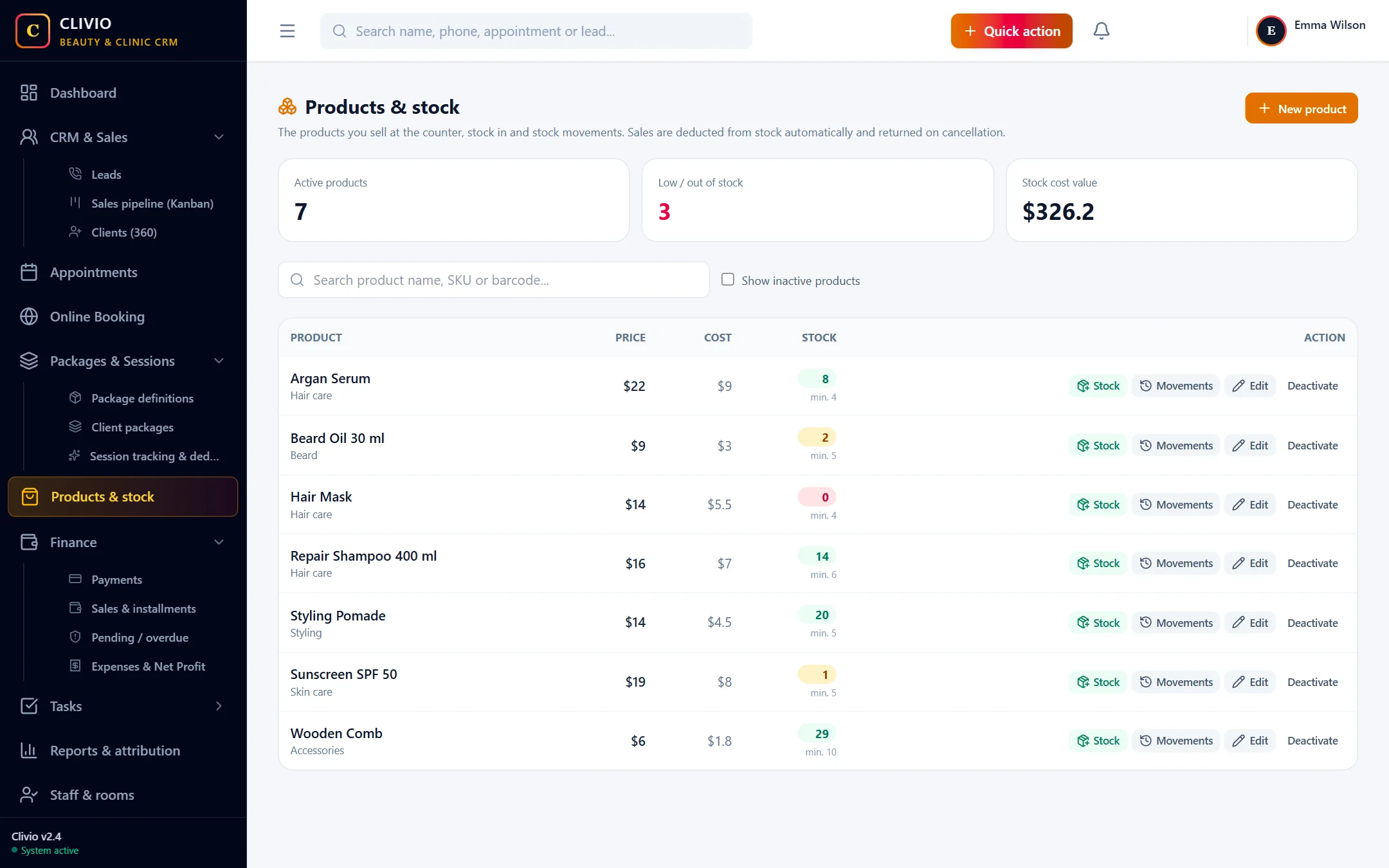
Set up the products you sell at the counter, such as shampoo, cream, pomade or beard oil. Stock goes down by itself as you sell, low products warn you, and you can take payment for services and products on one screen in minutes.
What does it offer?
- Product record: name, SKU, barcode, category, sale price and purchase cost
- A sale deducts stock automatically and a cancellation or refund returns it; stock never goes below zero
- Stock in and adjustments; every movement is recorded with its date and note
- Dashboard alert for low and out-of-stock products
- Quick sale: services and products in one cart, including sales to walk-in customers
Bring the products on your counter into the system
On the "Products & stock" page you add a product with its name and sale price. If you like you can also enter an SKU, barcode, category and purchase cost; thanks to the purchase cost you see the cost value of the stock on your shelves at the top of the page. You enter what you have on hand as "Opening stock", and the system records it as the first stock movement.
Stock goes down by itself and nothing is deleted
Every product sale takes the quantity out of stock automatically. If the sale is cancelled or refunded the product goes back into stock in the same way, and only once. When new goods arrive you update the stock with "Stock in", and for a count difference or damage with "Adjustment". Every movement stays on the "Movements" screen with its date, quantity, remaining stock and note; stock never goes below zero, and a product that is not in stock cannot be sold.
Find out about a sold-out product before a client asks
For every product you set a "low-stock alert" quantity. When the stock falls to that number or runs out, a reminder with an "Add stock" link appears in the smart follow-up alerts on the Dashboard; one click takes you to the product page to enter stock.
Quick sale: services and products on one screen
You open "Quick sale" from the Quick action menu at the top. You add services and products to the cart from the left and pick the staff member who did the work for each line. If the client is on file you type the name and select it; if it is a walk-in (retail) customer you simply carry on without selecting anyone. Set the discount and payment method (cash, card, transfer) and press "Collect".
- A sale to a walk-in customer is paid in full on the spot; debt and installments are only possible with a client on file.
- For a client on file you can take a deposit and follow the rest as a balance on the client card.
- The discount is shared across the lines proportionally; the sale goes into the cash close and revenue reports.
Who sees what, with separate permissions
Viewing products and stock, defining products, and adding or correcting stock are separate permissions. The reception and consultant roles can see and sell products; only the people you authorize can define products and correct stock.
Put your product sales and stock on record
Start Your 7-Day Free TrialFrequently Asked Questions
About Product Sales & Stock
Related features
Who is it for?
Take your business digital today
Try it free for 7 days. No setup fee, no credit card needed.